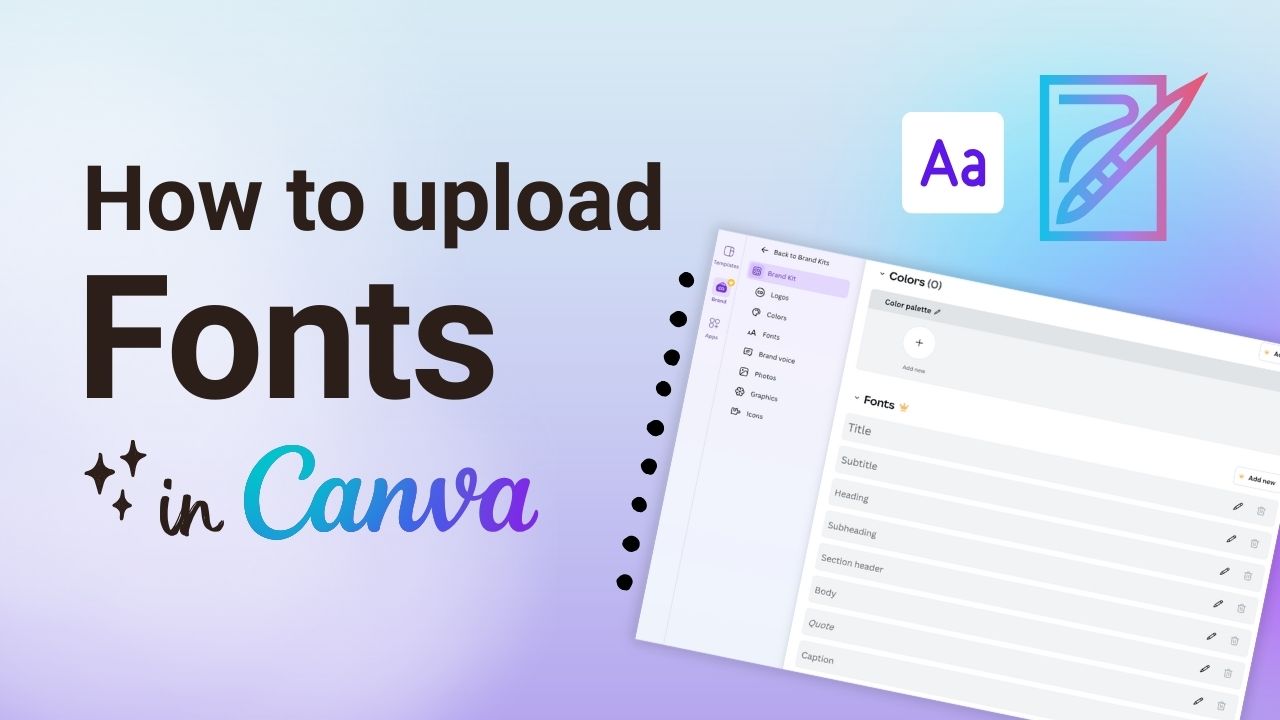
Stay on brand or make your designs more exciting by uploading a custom font. In this tutorial, we'll show you where to find new fonts and how to add them to your Canva Brand Kit.
Adding fonts to your Canva Brand Kit allow of easy access in the future!
STEP-BY-STEP
How to Upload a Font in Canva
Make your designs stand out with custom fonts that you can't find in Canva.
Option One: Upload by Selecting Text
Add text to your workspace. Then, select the text and click on the font options in the top menu.
Instead of choosing a font within Canva, scroll down to the bottom and click on the Upload a Font button.
Simply upload the font file(s) from your computer.
Option Two: Add a Font to Your Brand Kit
Click on the Brand tab in the left-hand menu.
2. Select All Assets and click on Add Fonts.
3. Scroll down and click on Manage Uploaded Fonts.
4. Upload the font file(s) from your computer.
Once uploaded, your new fonts are ready to use just like any other font.
Bonus Tip
Where Can I Find New Fonts?
If you're in search of new fonts to use, check out dafont.com.
Hundreds, if not thousands, of ready-to-use fonts
Many 100% FREE fonts available
You can preview your text before deciding on a font
For more Canva tips and tutorials, be sure to subscribe to our YouTube channel.