Quick Summary: Enhancing Graphics by Making Subtle Changes
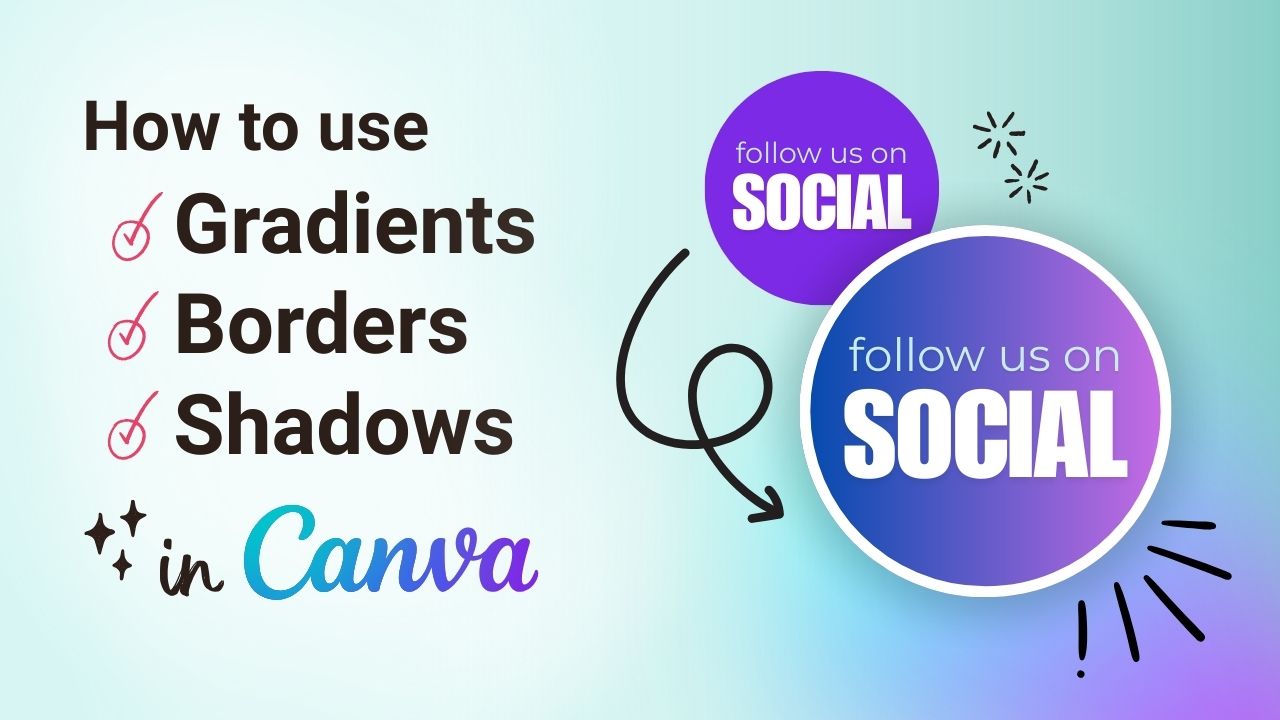
By using a combination of gradients, borders, and shadows, we show you how to make your designs stand out. We also show you how to find tune settings like border thickness and element transparency.
Like many things in life, it’s the small changes that can make all the difference. Learn how to make tweaks to your designs that take them to the next level. 🚀
STEP-BY-STEP
How to Add a Gradient in Canva
Solid colours are so last year. Learn how to add a gradient to a shape within Canva.
If you don’t already have a shape or element on your canvas to work with, go to Elements tab in the left-hand menu. From there, you can search for and then select one.
2. Select the element you’d like to add a gradient to. Then, click on the colour option next to Edit in the top menu.
3. Scroll down to the Default Gradient Colours section to select a gradient. You can also click on See All to view more options.
Gradients, when used in a subtle way, can make your graphics stand out.
BONUS STEPS
How to Add a Border in Canva
You can add a border, also referred to as a stroke, to images, videos, and other elements within Canva. Follow the steps below to learn how.
Select the element you’d like to add a border to.
2. Click on the Stroke Style icon in the top menu.
3. Click the style you prefer and then change the Stroke Weight to your desired thickness.
4. To change the colour of the stroke, click on the colour options to the left of the Stroke Style icon.
BONUS STEPS
How to Add a Shadow in Canva
By adding a shadow, you can make other elements pop off the page.
Click on the Elements tab in the left-hand menu.
2. Search for a shadow specifically in the Graphics section. This will pull a variety of shadows in all sorts of shapes and sizes. For the example below, I used a circle shadow.
3. Click on the shadow of your choice and then drag and drop it into place.
4. If the shadow is in front of your other elements, click on it and then click on Position in the top menu. Select Backward or To Back to move it to the correct position.
5. You can also modify the transparency by clicking on the Transparency icon in the top menu.
Remember that subtlety is our friend! In many cases, you don’t want the shadow to be too harsh.