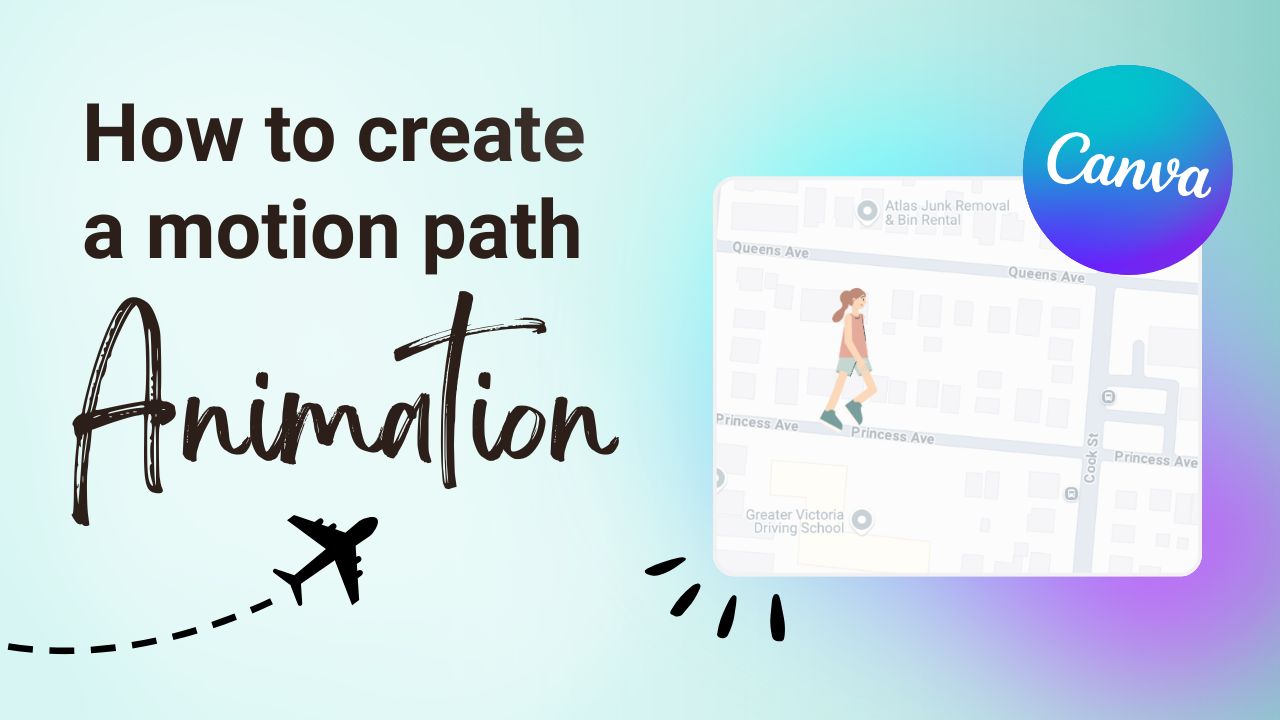
While Canva is known for graphic design, you can also create simple animations. In this tutorial, we'll show you how to make an element move across your workspace by adding a motion path.
Animating an element within Canva makes your work more interactive and is great for presentations and videos. 📽️
STEP-BY-STEP
How to Animate Elements in Canva with Motion Paths
Add a simple motion path and start animating elements within Canva.
Add the element you want to animate to your workspace. This can be a file that you upload or simply an element found within Canva’s library.
2. Click on the Animate button at the top of your screen.
3. Click on Create an Animation, found under Custom in the left-hand side of your screen.
4. Select and then drag the element around the canvas to create your animation path. Once you’re done, let go of the element and watch it move across your screen, following the path you create!
Tip: To create straight lines, hold down the shift key on your keyboard.
For more Canva tips and tutorials, be sure to subscribe to our YouTube channel.