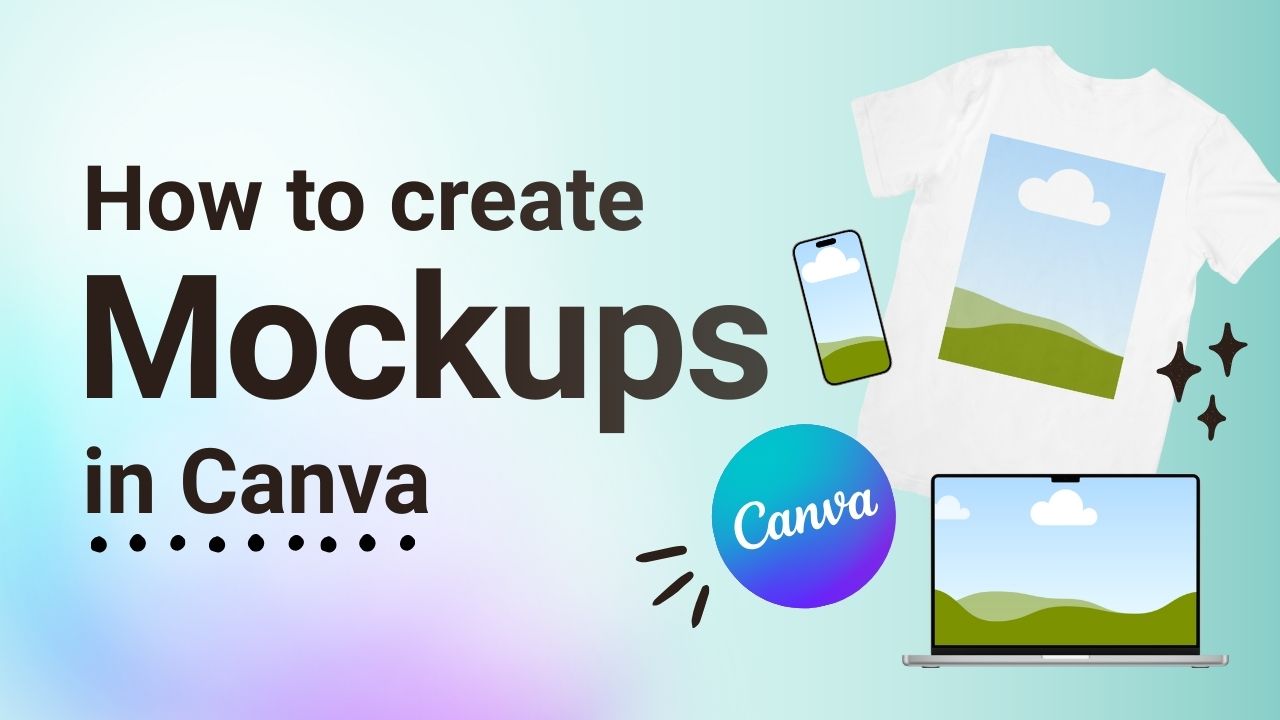
In this Canva tutorial, we'll show you how to create three different mockups: a sticker mockup, t-shirt mockup and laptop mockup.
Mockups are perfect for social media posts, web content, email newsletters and more. 💻
STEP-BY-STEP
How to Create a Mockup in Canva
From smartphones to t-shirts to mugs, Canva has a variety of mockups to choose from.
Click on the Elements tab in the left-hand menu.
2. Scroll through the different mockup types or simply search using keywords.
3. Once you find a mockup that you like, click on it. It will then appear in your workspace.
4. Drag and drop an image onto the mockup template. You can use an uploaded image from your computer or a stock image from the Elements tab.
5. To resize or reposition the image, double-click on it. You can manually resize the image or click on Fill or Fit. Once you’re happy with the image, click on the Apply Changes button.
With Canva mockups, you’re sure to create scroll-stopping graphics!